Original R36S Firmware
Download the latest community operating systems and learn how to install them correctly.
ArkOS
Community EditionThe most popular OS. Best performance, frequent updates, excellent compatibility.
AmberELEC
Stable BuildUser friendly interface, great UI design, rock-solid stability.
ROCKNIX
JELOS SuccessorModern, feature-rich firmware with active development and latest features.
LineageOS
Android OSAndroid-based OS for advanced users. Play Android games and use apps.
dArkOS
Debian LinuxDebian-based ArkOS operating system. Supports both original and clone devices.
Clone Device Firmware
ArkOS4Clone
Multi-Panel SupportModified ArkOS for G80D, G80C, and various panel configurations (4/5/8/10).
ArkOS K36
RF35XE-MBSpecifically optimized for K36/RF35XE-MB clone devices with pre-configured DTB.
ROCKNIX-B
Clone VariantROCKNIX variant for clone devices with modified panel support.
Installation Guide
Follow these steps to flash firmware to your SD card using Rufus:
Download & Open Rufus
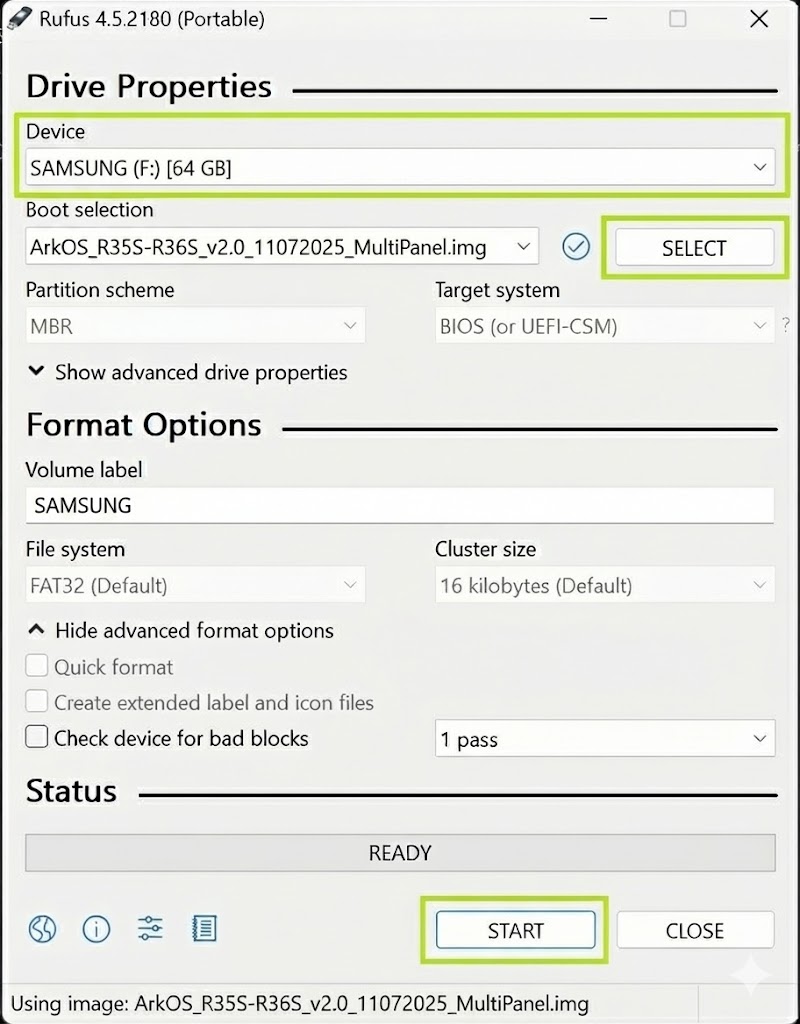
Download Rufus from the official website, insert your SD card into your computer, and open Rufus. The SD card will be automatically detected in the "Device" dropdown.
Select Firmware Image
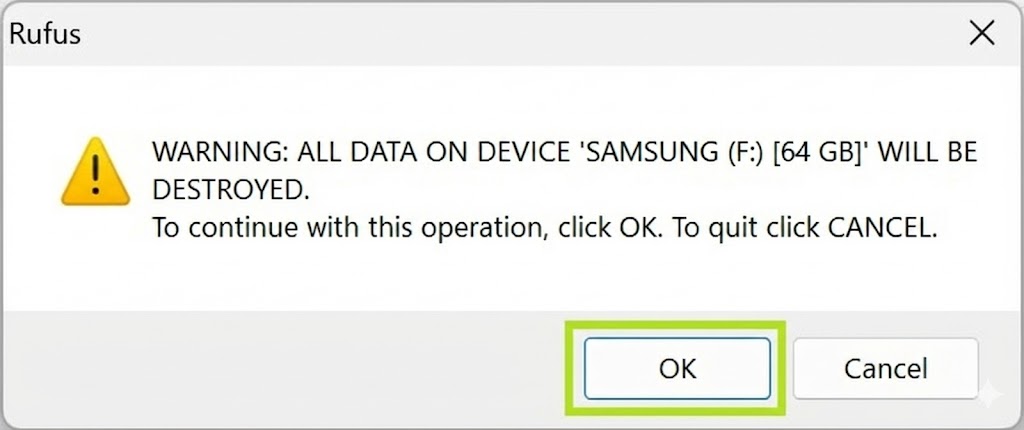
Click "SELECT" button and choose your downloaded firmware file (.img.xz or .img). Rufus can open compressed files directly, no need to extract first.
Start Flashing
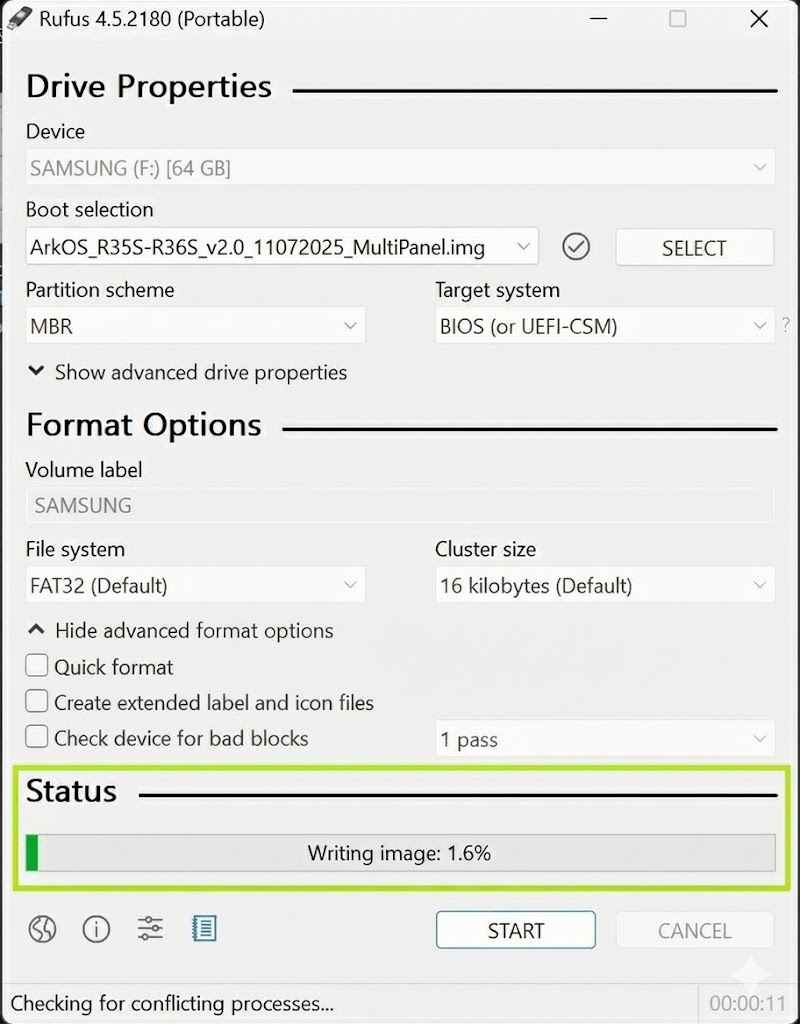
Leave all settings at default and click "START". A warning will appear - click OK to confirm. The process will take 5-15 minutes depending on your SD card speed.
Complete & Eject
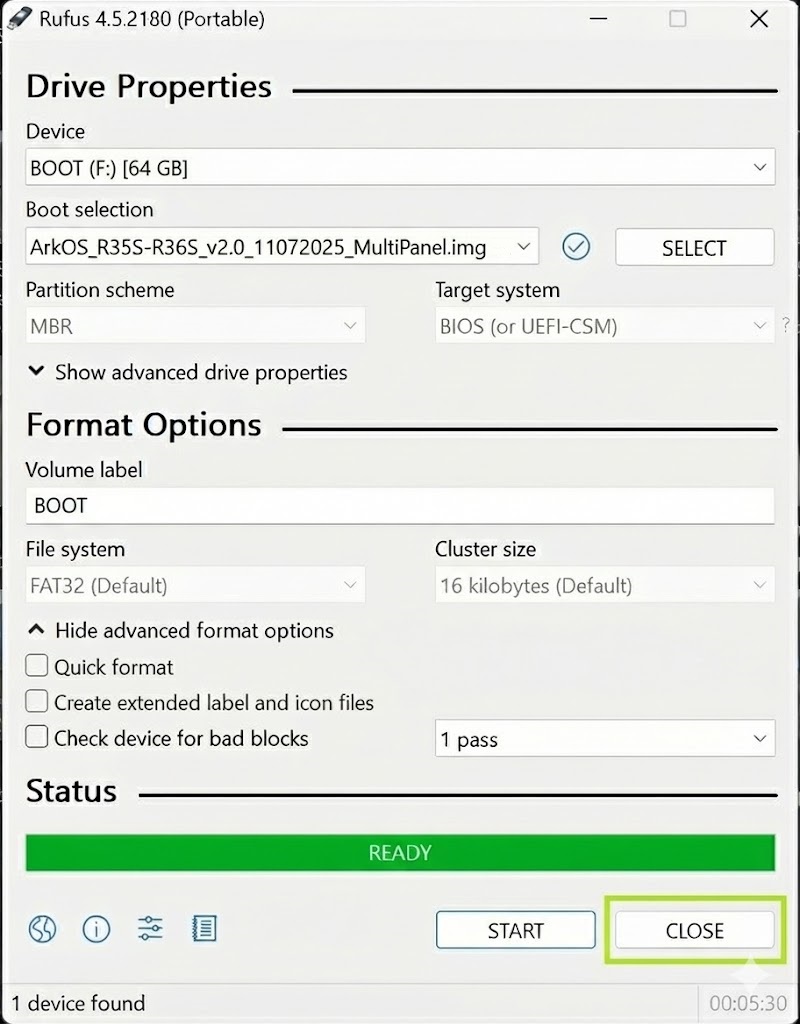
When the progress bar shows "READY" in green, the flashing is complete. Click "CLOSE", safely eject your SD card, and insert it into your R36S device.
dArkOS Installation Guide (Advanced)
Download RG351MP ISO
Download the RG351MP ISO version from the dArkOS GitHub releases page. This ISO works for both original R36S and clone devices after DTB configuration.
Backup Original DTB File
Before flashing, backup your device's original DTB file from the current firmware's boot folder. You will need this file later. Save it to your computer in a safe location.
Flash ISO to SD Card
Use Rufus to flash the RG351MP ISO to your SD card. Follow the standard flashing procedure as described in the installation guide above.
Copy DTB File to Boot Folder
After flashing, copy the DTB file you backed up in step 2 to the boot folder on the newly flashed SD card.
Access Boot Folder
If the boot folder is not visible in Windows, you need to assign a drive letter to the boot partition:
- Option 1: Use MiniTool Partition Wizard to assign a drive letter
- Option 2: Use Windows Disk Management to "Change Drive Letter and Paths"
Insert SD Card & Boot
After copying your device's original DTB file to the boot folder, safely eject the SD card from your computer, insert it into your R36S device, and power it on. dArkOS should now boot correctly!